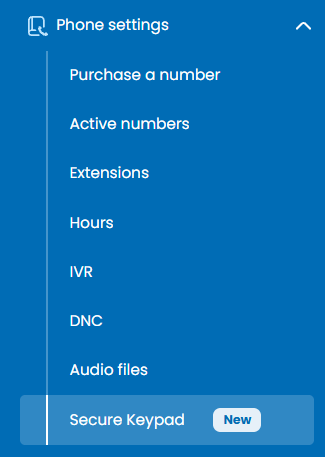
Navigate to the Secure Keypad management page from the phone system navigation menu.
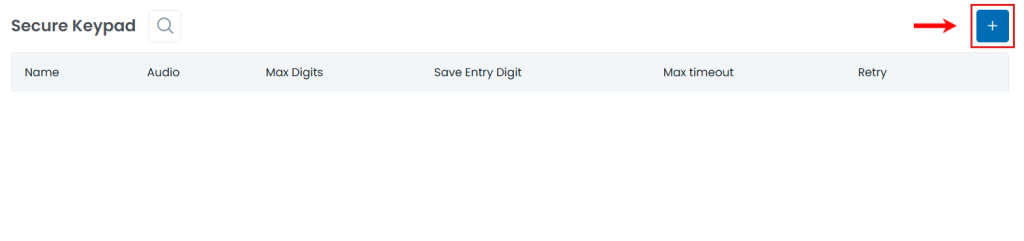
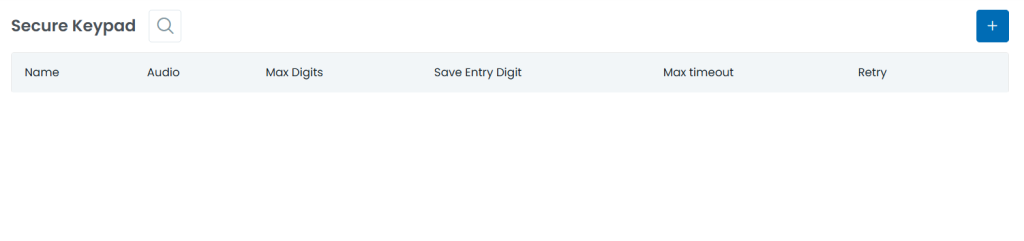
Click the blue Plus (+) button in the top right corner to set up a new secure keypad configuration.
Click the Search icon (magnifying glass) next to the page header to find specific secure keypad profiles by name.
Check the table headers to view parameters for each entry:
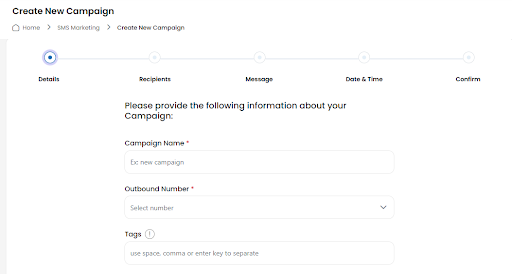
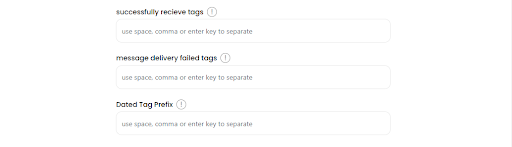
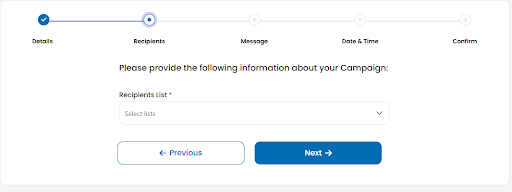
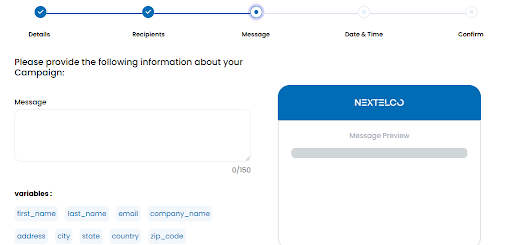
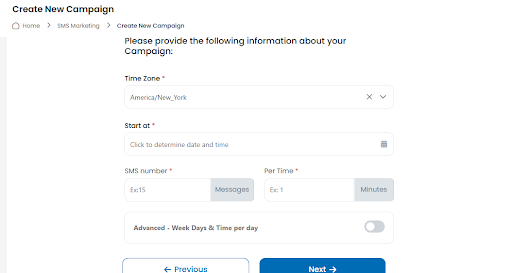
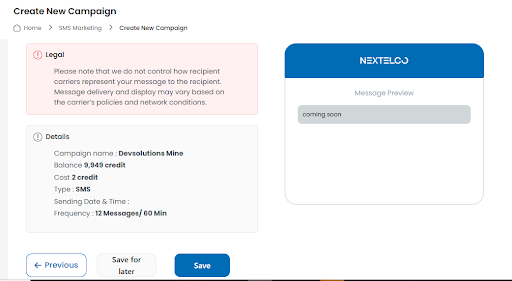
Follow these steps to create a new SMS campaign using the platform:

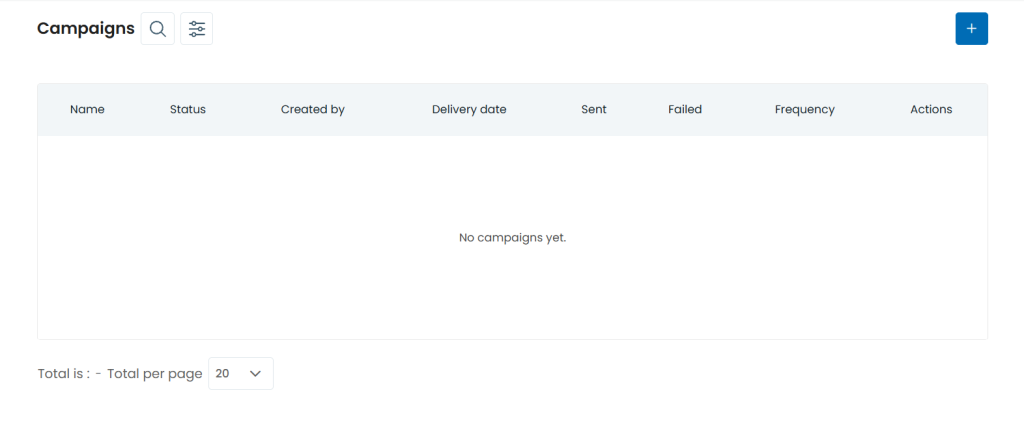
How to View and Manage Messaging Campaigns
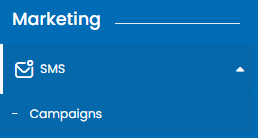
Expand the Messaging section in the navigation sidebar menu and select Campaigns.
Click the blue Plus (+) button in the top right corner to set up and schedule a new messaging outreach campaign.

Click the Search icon (magnifying glass) near the header to find campaigns by title or creator.
Click the Filter icon next to search to narrow down campaigns by status, date, or sending frequency.
Track campaign metrics across the table columns:
Use the controls under the Actions column on the far right:
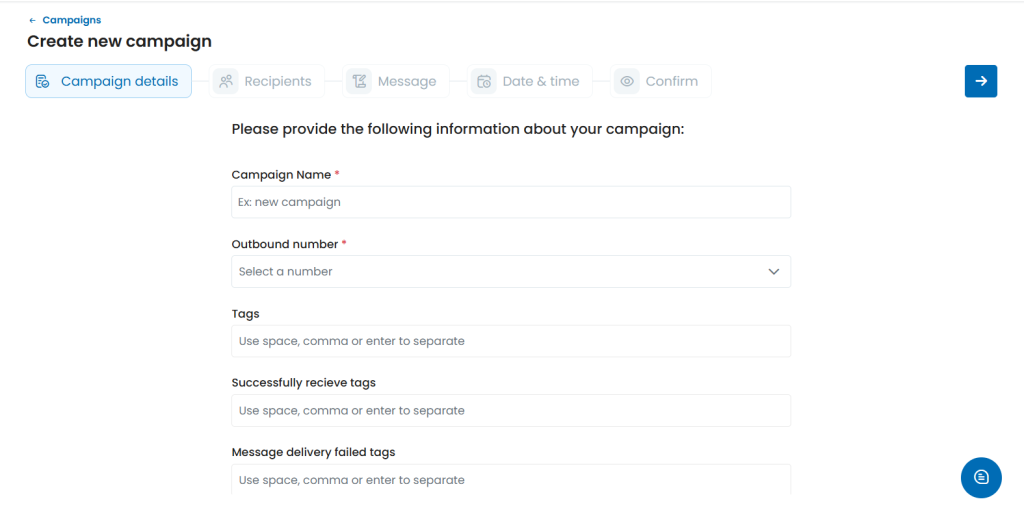
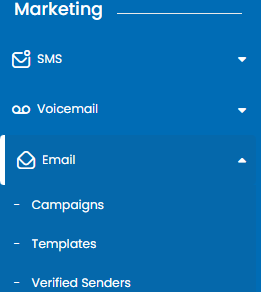
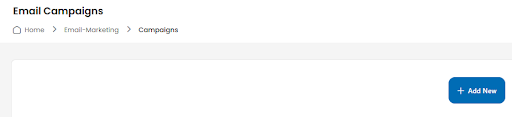
Creating a new email campaign in Nextelco is simple and efficient. Follow the steps below to set up your campaign and send it to your recipients.
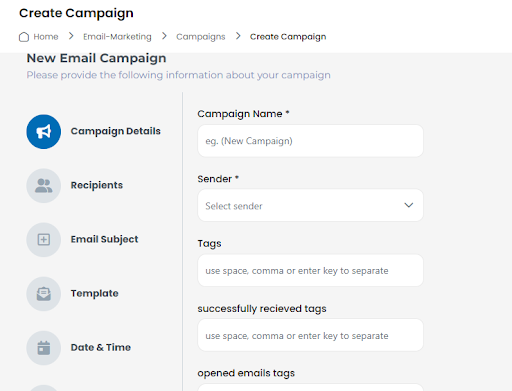
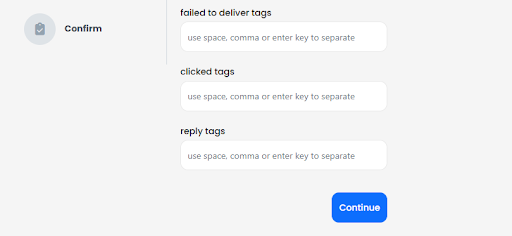
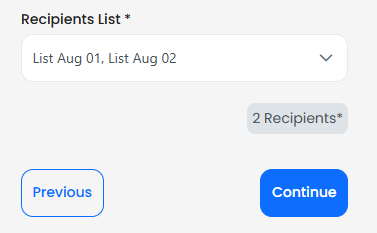
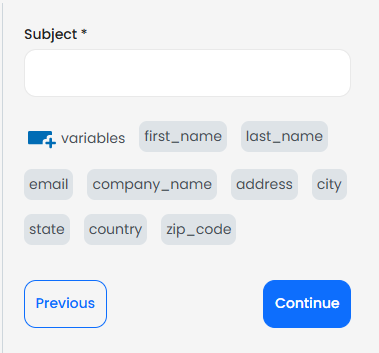
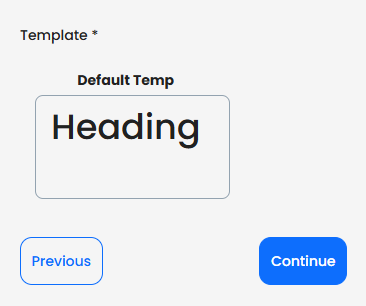
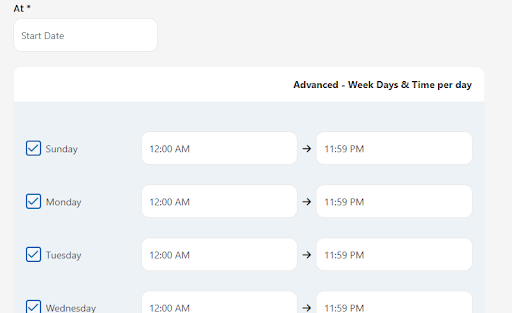
Actions: Add any additional actions such as tracking or follow-ups.
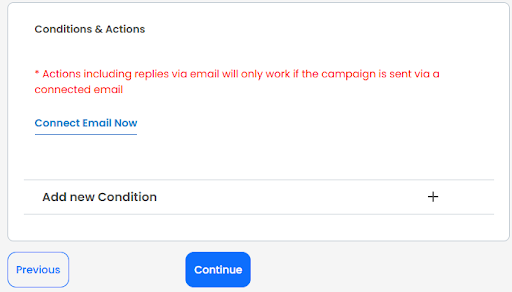
Confirm: Review all the details and confirm your campaign.
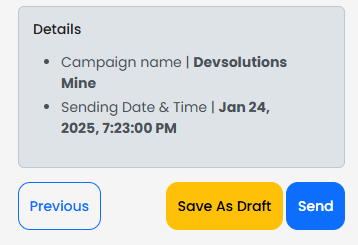
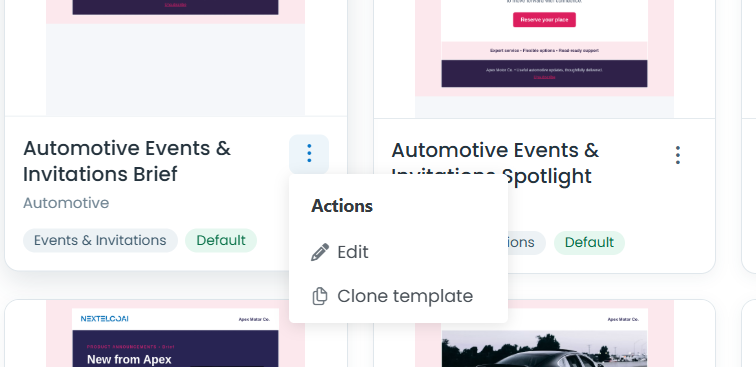
To create, search, and manage templates in the Templates module, follow this step-by-step process:
Click the blue + (Plus) button located in the top-right corner.
Choose whether to build a new template design from scratch or edit a base structure to save to your account.
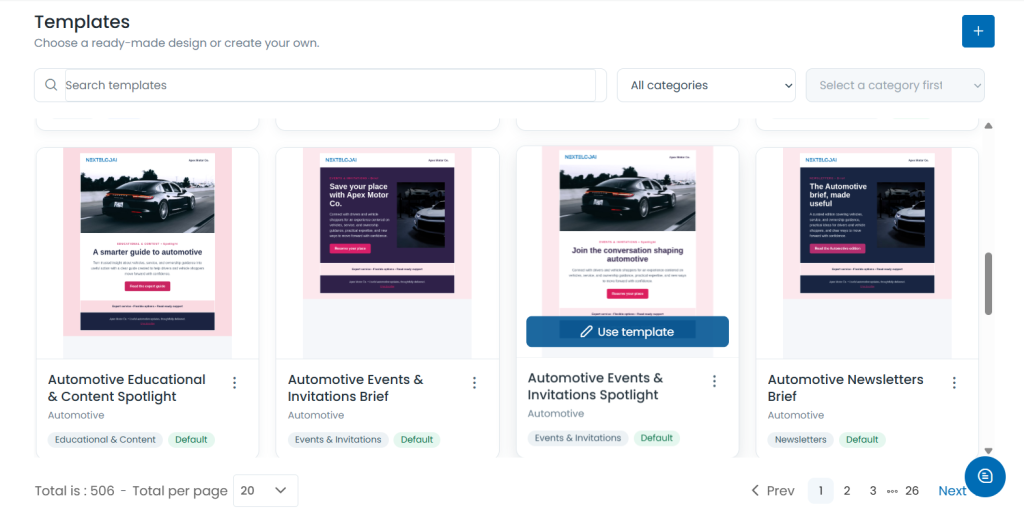
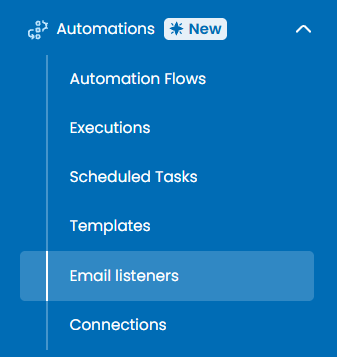
Log in to your account platform and navigate to the Email listeners section from the main navigation menu.
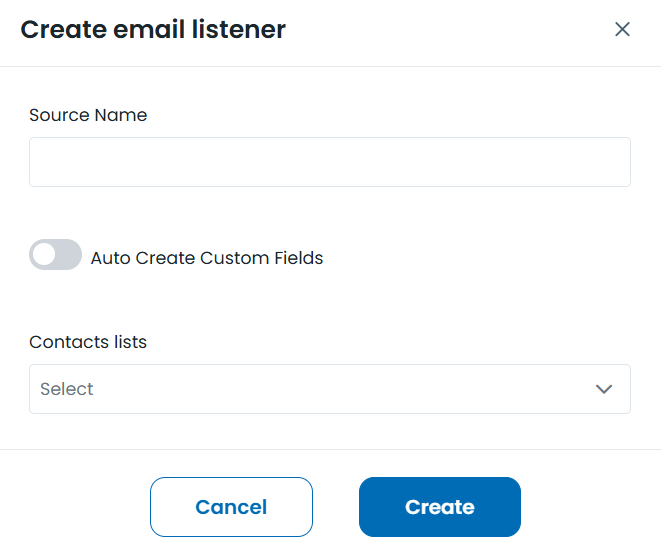
Step 2: Add a New Email Listener

In the configuration modal that opens, fill out the required details:
Once created, view your active setups in the structured table:

Email Address: The system-generated unique email address (e.g., qbr3vq1s-l15@m3.nextelco.io) used to receive incoming data.

Contacts Lists: The targeted list along with the current count of imported contacts.

Status: Shows whether the listener is currently active.

Auto Create Custom Fields: Visual indicator showing if custom fields are generated automatically (Green checkmark = Enabled, Red cross = Disabled).

Step 4: Manage Existing Listeners
Under the Actions column on the right side of any row:

Delete: Click the Trash Can icon to permanently remove an email listener.

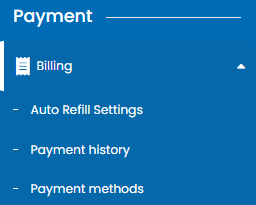
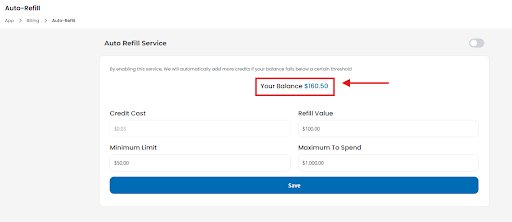
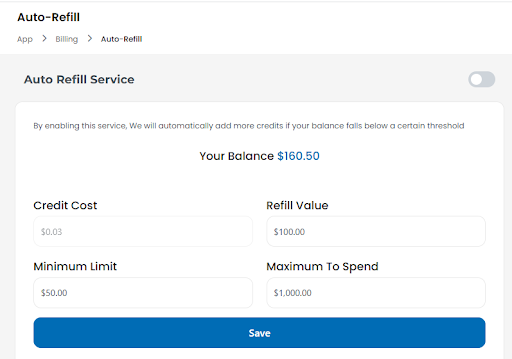
The Auto Refill Service ensures that your account balance is automatically replenished when it falls below a specified threshold. This feature helps you avoid interruptions in services by maintaining a sufficient balance.
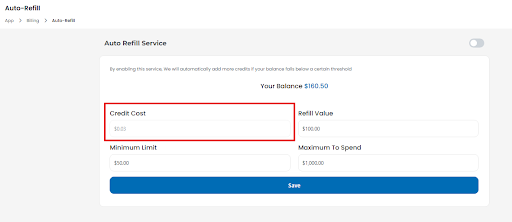
Credit Cost: Shows the cost per credit (e.g., $0.03 per credit).
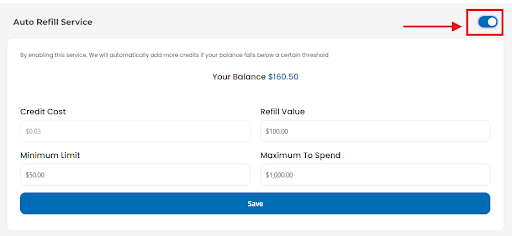
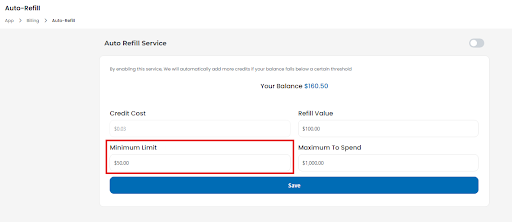
Set Minimum Limit: Enter the balance threshold (e.g., $50.00).
Minimum Limit: The balance threshold that triggers an auto-refill
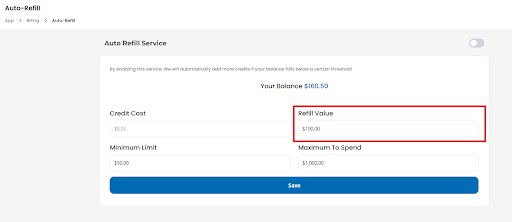
Define Refill Value: Specify the amount to be added (e.g., $100.00).
Refill Value: The amount to be added to your balance each time an auto-refill is triggered.
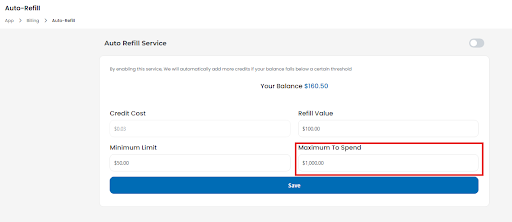
Set Maximum to Spend: Define the total amount you’re willing to spend (e.g., $1,000.00).
Maximum to Spend: The total limit you are willing to spend for auto-refills during the billing period.
Click Save to apply the changes.
NexTelcoAI appears to be an AI-powered telecom/business communications platform available as a mobile app (Android and iOS), developed by DevSolutions Group. Based on its public app listings, it is designed to help businesses manage calls, messages, voicemails, sales activity, and customer interactions from one system.
Navigate to the Secure Keypad management page from the phone system navigation menu.
Click the blue Plus (+) button in the top right corner to set up a new secure keypad configuration.
Click the Search icon (magnifying glass) next to the page header to find specific secure keypad profiles by name.
Check the table headers to view parameters for each entry:
Follow these steps to create a new SMS campaign using the platform:
How to View and Manage Messaging Campaigns
Expand the Messaging section in the navigation sidebar menu and select Campaigns.
Click the blue Plus (+) button in the top right corner to set up and schedule a new messaging outreach campaign.
Click the Search icon (magnifying glass) near the header to find campaigns by title or creator.
Click the Filter icon next to search to narrow down campaigns by status, date, or sending frequency.
Track campaign metrics across the table columns:
Use the controls under the Actions column on the far right:
Creating a new email campaign in Nextelco is simple and efficient. Follow the steps below to set up your campaign and send it to your recipients.
Actions: Add any additional actions such as tracking or follow-ups.
Confirm: Review all the details and confirm your campaign.
To create, search, and manage templates in the Templates module, follow this step-by-step process:
Click the blue + (Plus) button located in the top-right corner.
Choose whether to build a new template design from scratch or edit a base structure to save to your account.
Log in to your account platform and navigate to the Email listeners section from the main navigation menu.
Step 2: Add a New Email Listener
In the configuration modal that opens, fill out the required details:
Once created, view your active setups in the structured table:
Email Address: The system-generated unique email address (e.g., qbr3vq1s-l15@m3.nextelco.io) used to receive incoming data.
Contacts Lists: The targeted list along with the current count of imported contacts.
Status: Shows whether the listener is currently active.
Auto Create Custom Fields: Visual indicator showing if custom fields are generated automatically (Green checkmark = Enabled, Red cross = Disabled).
Step 4: Manage Existing Listeners
Under the Actions column on the right side of any row:
Delete: Click the Trash Can icon to permanently remove an email listener.
The Auto Refill Service ensures that your account balance is automatically replenished when it falls below a specified threshold. This feature helps you avoid interruptions in services by maintaining a sufficient balance.
Credit Cost: Shows the cost per credit (e.g., $0.03 per credit).
Set Minimum Limit: Enter the balance threshold (e.g., $50.00).
Minimum Limit: The balance threshold that triggers an auto-refill
Define Refill Value: Specify the amount to be added (e.g., $100.00).
Refill Value: The amount to be added to your balance each time an auto-refill is triggered.
Set Maximum to Spend: Define the total amount you’re willing to spend (e.g., $1,000.00).
Maximum to Spend: The total limit you are willing to spend for auto-refills during the billing period.
Click Save to apply the changes.
NexTelcoAI appears to be an AI-powered telecom/business communications platform available as a mobile app (Android and iOS), developed by DevSolutions Group. Based on its public app listings, it is designed to help businesses manage calls, messages, voicemails, sales activity, and customer interactions from one system.