Home » Help center
Secure Keyboard
Audio Files
DNC
IVR
Hours
Extension
My Active Numbers
Puchase Phone Number
Add New Contact
Extensions
Active phone number
search and purchase

How to View and Manage Secure Keypad Configurations

Access the Secure Keypad Page

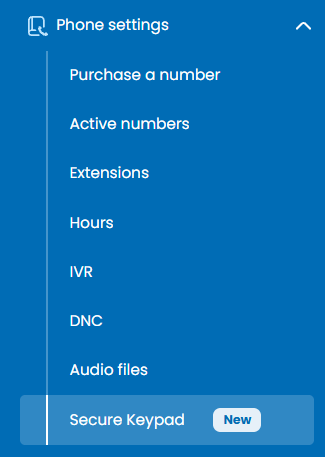
Navigate to the Secure Keypad management page from the phone system navigation menu.
Add a New Secure Keypad Profile

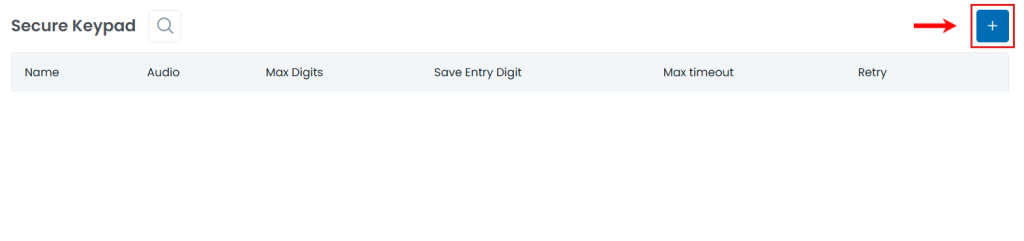
Click the blue Plus (+) button in the top right corner to set up a new secure keypad configuration.
Search Existing Configurations

Click the Search icon (magnifying glass) next to the page header to find specific secure keypad profiles by name.
Review Configuration Settings

Check the table headers to view parameters for each entry:
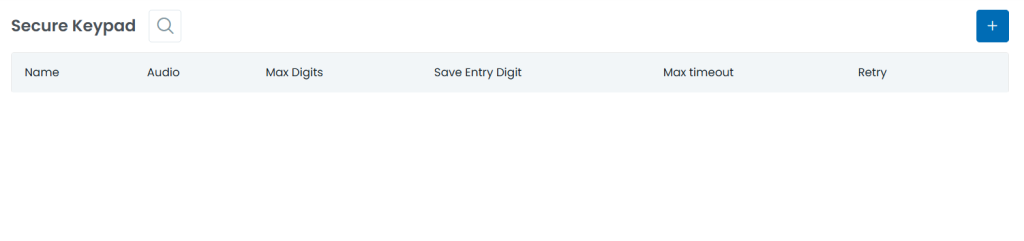
    • Name: The custom label assigned to the secure keypad profile.
    • Audio: The prompt or voice instruction played to callers when capturing input.
    • Max Digits: The maximum number of keypress digits allowed for entry.
    • Save Entry Digit: The designated key (e.g., # or *) used to confirm and submit the input.
    • Max timeout: The maximum wait time allocated for input before timing out.
    • Retry: The number of attempts a caller is allowed if the input is invalid or incomplete.

New SMS campaign
View Contacts

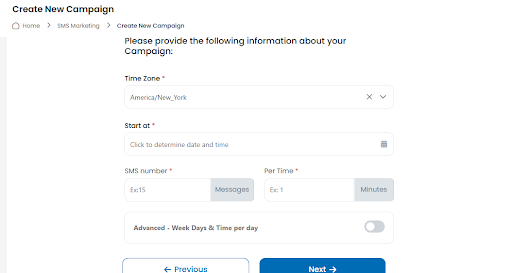
How to Create a New SMS Campaign

Follow these steps to create a new SMS campaign using the platform:
Step 1: Access the Campaign Creation Page
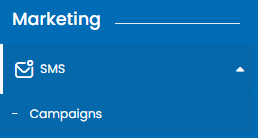
  1. Navigate to the Marketing section in the left-hand menu.
  2. Click on SMS, then select Campaigns.

  • Click the add New button.

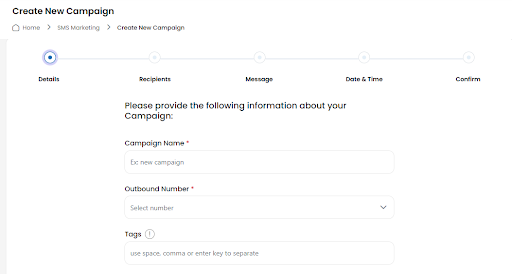
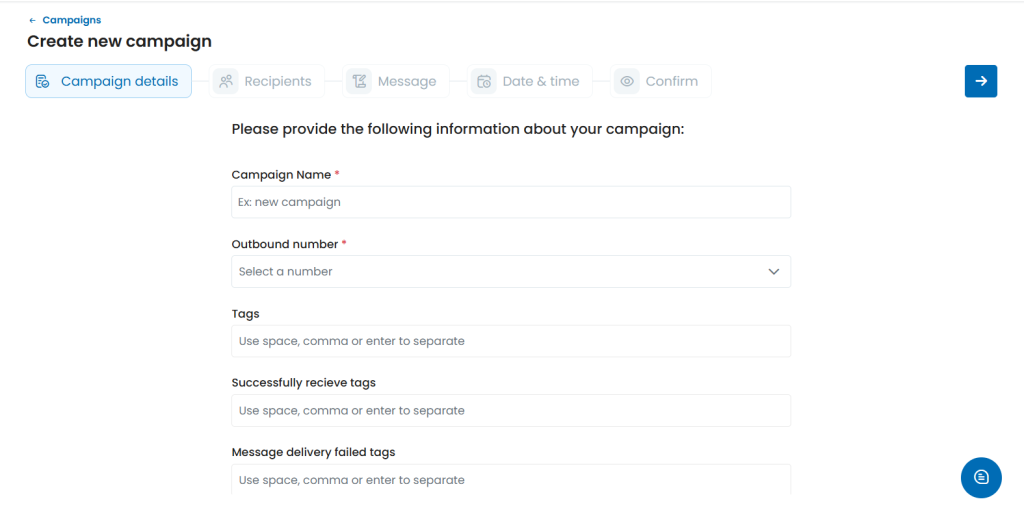
Step 2: Fill in Campaign Details
  • Campaign Name: Enter a name for your campaign (e.g., “Monthly Promotion”).
  • Outbound Number: Select the number from which messages will be sent.
  • Tags: Add relevant tags separated by commas. These help you organize your campaigns.

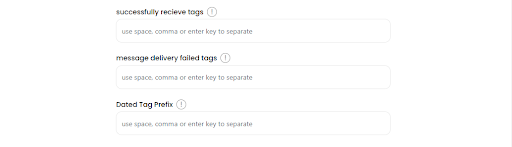
  • Successfully Receive Tags: Tags for successful message deliveries.
  • Message Delivery Failed Tags: Tags for failed message deliveries.
  • Dated Tag Prefix: Prefix to categorize campaigns by date.

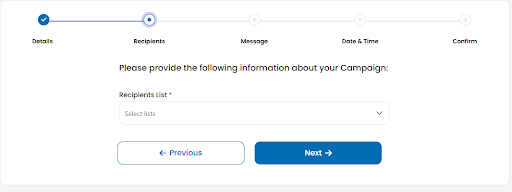
Step 3: Configure Recipients
  • Move to the Recipients section.

  • Choose a list of contacts or create a new one.
  • You can filter recipients based on specific criteria.

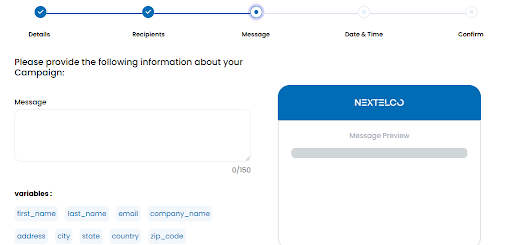
Step 4: Compose the Message
  1. Write the message for the campaign.
  2. Preview the message to ensure accuracy.
  3. Optionally, include personalization variables (e.g., recipient name).

Step 5: Schedule the Campaign
  1. Go to the Date & Time section.
  2. Set the preferred date and time for the campaign to be sent.
  3. Review the schedule to ensure it aligns with your campaign goals.

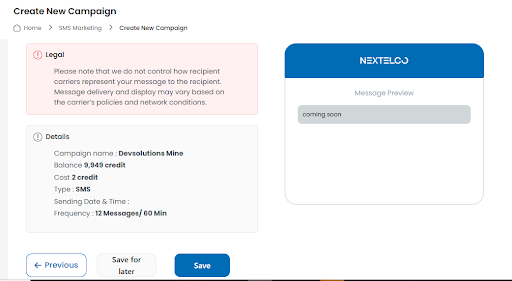
Step 6: Confirm and Launch
  1. Review all the details on the Confirm page.
  2. If everything looks good, click Save to launch your campaign.

Campaigns
Templates
Campaign Listing and filter
Audio Files Listing and Filter
New Voicemail Campaign

How to View and Manage Messaging Campaigns

Access the Messaging Campaigns Dashboard

Expand the Messaging section in the navigation sidebar menu and select Campaigns.

Create a New Campaign

Click the blue Plus (+) button in the top right corner to set up and schedule a new messaging outreach campaign.

Search and Filter Campaigns

Click the Search icon (magnifying glass) near the header to find campaigns by title or creator.

Click the Filter icon next to search to narrow down campaigns by status, date, or sending frequency.

Review Campaign Performance and Details

Track campaign metrics across the table columns:

      • Name: The title assigned to the campaign (e.g., Inrtesting, Rt, Sms-Dashboard-Dummy-1771493899014, Test Campaign).
      • Status: The current execution state (e.g., Draft, Sent, Sending Ongoing).
      • Created by: The user or email address responsible for creating the entry (e.g., rhany@devsolutions.team, fred@nextelco.io, Mohamed Abdellatef).
      • Delivery date: Scheduled or completed dispatch timestamp (e.g., Apr 19, 2026 05:02PM).
      • Sent: Total number of messages successfully dispatched (e.g., 0, 2, 3).
      • Failed: Total number of messages that failed delivery (e.g., 0, 2, 3).
      • Frequency: Configured throttle rate for message delivery (e.g., 1 Messages / 100 Minutes, 4 Messages / 1 Minutes).
Manage Campaign Actions

Use the controls under the Actions column on the far right:

    • Edit (pencil): Click to modify campaign settings or contents (available for Draft campaigns).
    • Duplicate (double square): Click to clone the configuration settings of an existing campaign.

New email campaign
Campaigns logs
Campaigns
Voicemail Logs
AI Text to Speech
AI Clone
Upload New Audio File
Campaigns Listing and Filter

How to Create a New Email Campaign in Nextelco

Creating a new email campaign in Nextelco is simple and efficient. Follow the steps below to set up your campaign and send it to your recipients.

Steps to Create a New Email Campaign
Access the Email Campaigns Section
  1. Navigate to Marketing > Email > Campaigns from the left-hand menu.

  • Click on the Add new button

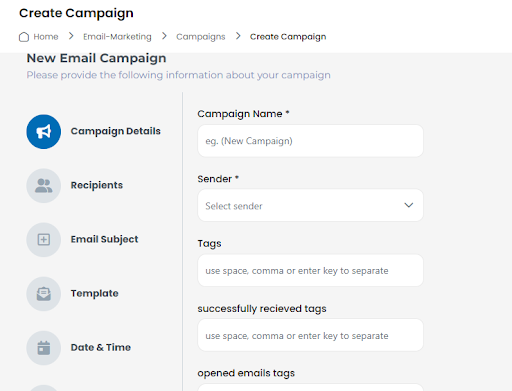
Fill in Campaign Details
  • Campaign Name: Enter a unique name for your campaign (required).
  • Sender: Select the sender’s email address from the dropdown (required).
  • Tags: Add tags to categorize your campaign (optional).
    1. Tags can help you organize recipients based on specific behaviors such as:
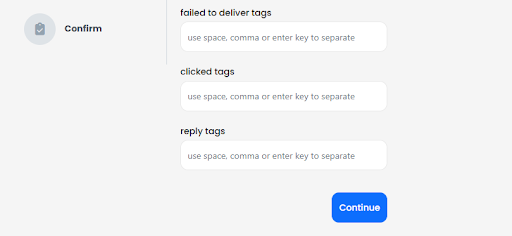
      1. Successfully Received Tags: Recipients who received the email.
      2. Opened Emails Tags: Recipients who opened the email.
      3. Failed to Deliver Tags: Recipients whose delivery failed.
      4. Clicked Tags: Recipients who clicked on links in the email.
      5. Reply Tags: Recipients who replied to the email.

  • Click Continue
    Once you’ve entered the required details, click the Continue button to proceed to the next steps.
  • Configure the Remaining Steps
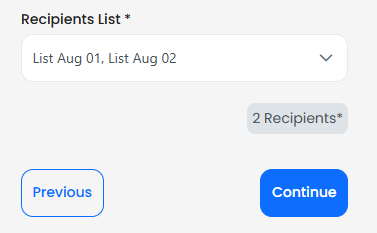
    • Recipients: Select your recipient list.

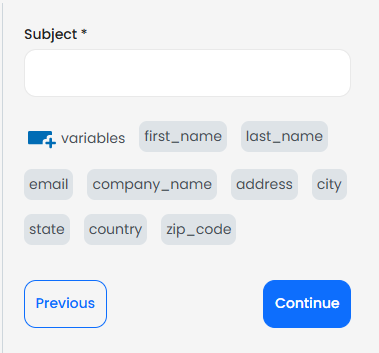
  • Email Subject: Write the subject line of your email.

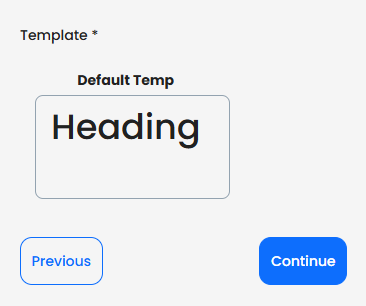
  • Template: Choose a pre-designed template or upload your own.

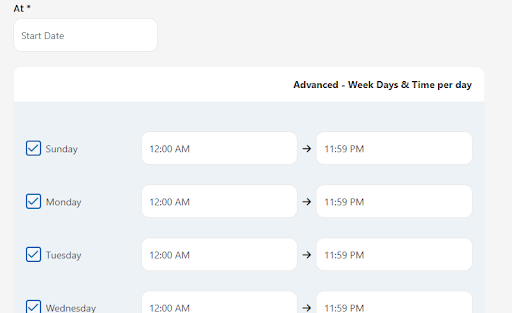
  1. Date & Time: Schedule the date and time for sending the email.

Actions: Add any additional actions such as tracking or follow-ups.

Confirm: Review all the details and confirm your campaign.

Templates
Campaigns
Suppressions
Email logs
Domains
Reputation
Unsubscribes
Teams management
Create New Campaign
Campaigns Listing and Filter
Create New Verified Senders

To create, search, and manage templates in the Templates module, follow this step-by-step process:

1. Create a New Template

Click the blue + (Plus) button located in the top-right corner.

Choose whether to build a new template design from scratch or edit a base structure to save to your account.

2. Search and Filter Templates
  • Search Field: Type a name or keyword into the Search templates input bar on the left to quickly locate specific designs.
  • Category Filter: Click the All categories dropdown menu to filter templates by specific design or business types.
  • Sub-Category Filter: Use the Select a category first dropdown menu to narrow down options after selecting a primary category.

3. Review and Manage Existing Templates
  • Browse available cards such as First Template, First Template_copy, Fred new template, or New Demo Template.
  • Identify template types and statuses via the bottom labels (e.g., Custom, Saved).
  • Click the Three Dots (⋮) menu icon on any template card to perform actions like editing, duplicating, or deleting.

Payment Methods Management
Account Usage
Billing History

How to Manage Payment Methods

Navigate to Payment Methods

Go to your account settings and select the Payment Methods tab.

Add a New Payment Method

Click the blue “+” (Plus) button located in the top-right corner of the screen.

Enter your card details (card number, expiration date, and CVV/CVC) in the prompt to link a new payment card.

View Existing Payment Methods

Saved cards are displayed as individual card tiles showing the last four digits (e.g., **** 4242).

Identify or Change the Default Card

The card currently set for primary billing will display a ★ Default tag in the top-right corner of its tile.

Auto Refill Settings
Logs
Carrier registration
Usage
Overview
Chat

How to Use Auto Refill Settings

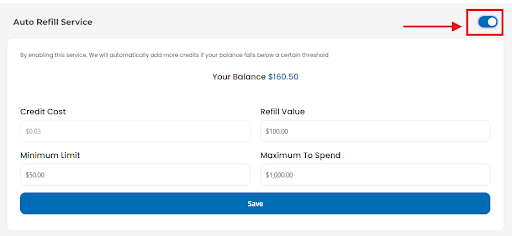
The Auto Refill Service ensures that your account balance is automatically replenished when it falls below a specified threshold. This feature helps you avoid interruptions in services by maintaining a sufficient balance.

Steps to Enable and Configure Auto Refill
  1. Navigate to Billing in the left-hand menu.
  2. Select Auto Refill Settings from the submenu.

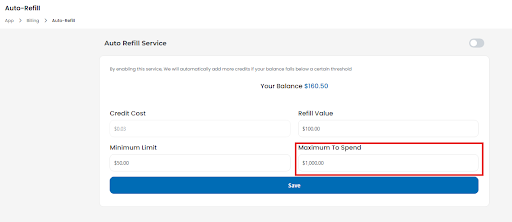
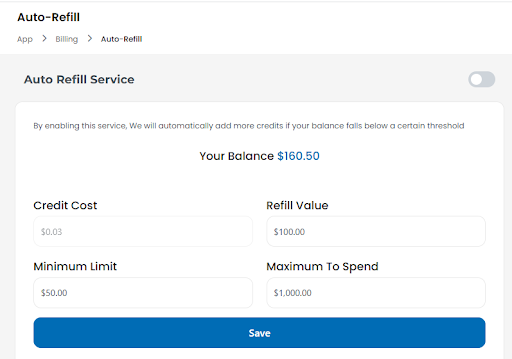
  • Your Balance: Displays your current account balance.

Credit Cost: Shows the cost per credit (e.g., $0.03 per credit).

  • Follow these steps to configure auto-refill:
    • Enable the Service: Toggle the switch at the top right of the page to activate auto-refill.

Set Minimum Limit: Enter the balance threshold (e.g., $50.00).
Minimum Limit: The balance threshold that triggers an auto-refill

Define Refill Value: Specify the amount to be added (e.g., $100.00).
Refill Value: The amount to be added to your balance each time an auto-refill is triggered.

Set Maximum to Spend: Define the total amount you’re willing to spend (e.g., $1,000.00).
Maximum to Spend: The total limit you are willing to spend for auto-refills during the billing period.

Click Save to apply the changes.

What is NexTelcoAI
What does NexTelcoAI do
What is NexTelcoAI CE
What is NexTelcoAI WE
What is NexTelcoAI WFA
What is NexTelcoAI Cloud

What is NexTelcoAI

NexTelcoAI appears to be an AI-powered telecom/business communications platform available as a mobile app (Android and iOS), developed by DevSolutions Group. Based on its public app listings, it is designed to help businesses manage calls, messages, voicemails, sales activity, and customer interactions from one system.

What it does
Key features described publicly include:
  • AI-powered insights for call performance and user activity
  • Smart call handling such as routing, voicemail transcription, and automated responses
  • Unified communications for calls, messages, and voicemails
  • Sales/customer management with team performance and commissions tracking
  • Team collaboration by assigning calls/messages internally
  • Secure & scalable tools for business use
Secure Keyboard
Audio Files
DNC
IVR
Hours
Extension
My Active Numbers
Puchase Phone Number
Add New Contact
Extensions
Active phone number
search and purchase

How to View and Manage Secure Keypad Configurations

Access the Secure Keypad Page

Navigate to the Secure Keypad management page from the phone system navigation menu.

Add a New Secure Keypad Profile

Click the blue Plus (+) button in the top right corner to set up a new secure keypad configuration.

Search Existing Configurations

Click the Search icon (magnifying glass) next to the page header to find specific secure keypad profiles by name.

Review Configuration Settings

Check the table headers to view parameters for each entry:

    • Name: The custom label assigned to the secure keypad profile.
    • Audio: The prompt or voice instruction played to callers when capturing input.
    • Max Digits: The maximum number of keypress digits allowed for entry.
    • Save Entry Digit: The designated key (e.g., # or *) used to confirm and submit the input.
    • Max timeout: The maximum wait time allocated for input before timing out.
    • Retry: The number of attempts a caller is allowed if the input is invalid or incomplete.

New SMS campaign
View Contacts

How to Create a New SMS Campaign

Follow these steps to create a new SMS campaign using the platform:
Step 1: Access the Campaign Creation Page
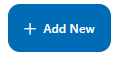
  1. Navigate to the Marketing section in the left-hand menu.
  2. Click on SMS, then select Campaigns.

  • Click the add New button.

Step 2: Fill in Campaign Details
  • Campaign Name: Enter a name for your campaign (e.g., “Monthly Promotion”).
  • Outbound Number: Select the number from which messages will be sent.
  • Tags: Add relevant tags separated by commas. These help you organize your campaigns.

  • Successfully Receive Tags: Tags for successful message deliveries.
  • Message Delivery Failed Tags: Tags for failed message deliveries.
  • Dated Tag Prefix: Prefix to categorize campaigns by date.

Step 3: Configure Recipients
  • Move to the Recipients section.

  • Choose a list of contacts or create a new one.
  • You can filter recipients based on specific criteria.

Step 4: Compose the Message
  1. Write the message for the campaign.
  2. Preview the message to ensure accuracy.
  3. Optionally, include personalization variables (e.g., recipient name).

Step 5: Schedule the Campaign
  1. Go to the Date & Time section.
  2. Set the preferred date and time for the campaign to be sent.
  3. Review the schedule to ensure it aligns with your campaign goals.

Step 6: Confirm and Launch
  1. Review all the details on the Confirm page.
  2. If everything looks good, click Save to launch your campaign.

Campaigns
Templates
Campaign Listing and filter
Audio Files Listing and Filter
New Voicemail Campaign

How to View and Manage Messaging Campaigns

Access the Messaging Campaigns Dashboard

Expand the Messaging section in the navigation sidebar menu and select Campaigns.

Create a New Campaign

Click the blue Plus (+) button in the top right corner to set up and schedule a new messaging outreach campaign.

Search and Filter Campaigns

Click the Search icon (magnifying glass) near the header to find campaigns by title or creator.
Click the Filter icon next to search to narrow down campaigns by status, date, or sending frequency.

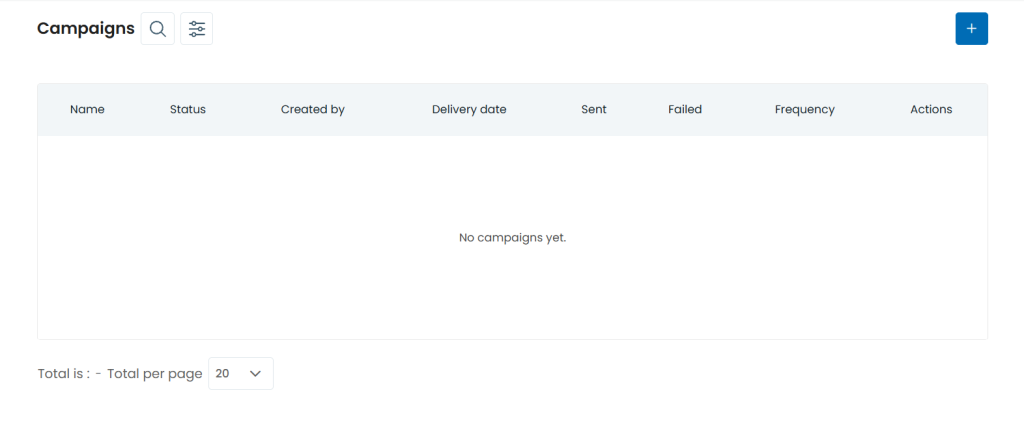
Review Campaign Performance and Details

Track campaign metrics across the table columns:

      • Name: The title assigned to the campaign (e.g., Inrtesting, Rt, Sms-Dashboard-Dummy-1771493899014, Test Campaign).
      • Status: The current execution state (e.g., Draft, Sent, Sending Ongoing).
      • Created by: The user or email address responsible for creating the entry (e.g., rhany@devsolutions.team, fred@nextelco.io, Mohamed Abdellatef).
      • Delivery date: Scheduled or completed dispatch timestamp (e.g., Apr 19, 2026 05:02PM).
      • Sent: Total number of messages successfully dispatched (e.g., 0, 2, 3).
      • Failed: Total number of messages that failed delivery (e.g., 0, 2, 3).
      • Frequency: Configured throttle rate for message delivery (e.g., 1 Messages / 100 Minutes, 4 Messages / 1 Minutes).
Manage Campaign Actions

Use the controls under the Actions column on the far right:
    • Edit (pencil): Click to modify campaign settings or contents (available for Draft campaigns).
    • Duplicate (double square): Click to clone the configuration settings of an existing campaign.

New email campaign
Campaigns logs
Campaigns
Voicemail Logs
AI Text to Speech
AI Clone
Upload New Audio File
Campaigns Listing and Filter

How to Create a New Email Campaign in Nextelco

Creating a new email campaign in Nextelco is simple and efficient. Follow the steps below to set up your campaign and send it to your recipients.
Steps to Create a New Email Campaign
Access the Email Campaigns Section
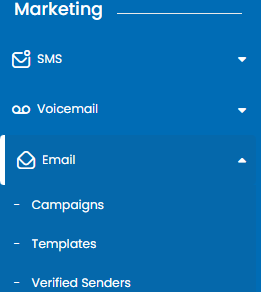
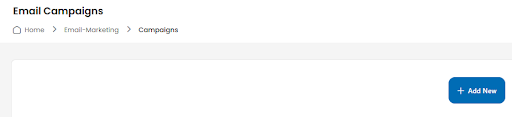
  1. Navigate to Marketing > Email > Campaigns from the left-hand menu.

  • Click on the Add new button

Fill in Campaign Details
  • Campaign Name: Enter a unique name for your campaign (required).
  • Sender: Select the sender’s email address from the dropdown (required).
  • Tags: Add tags to categorize your campaign (optional).
    1. Tags can help you organize recipients based on specific behaviors such as:
      1. Successfully Received Tags: Recipients who received the email.
      2. Opened Emails Tags: Recipients who opened the email.
      3. Failed to Deliver Tags: Recipients whose delivery failed.
      4. Clicked Tags: Recipients who clicked on links in the email.
      5. Reply Tags: Recipients who replied to the email.

  • Click Continue
    Once you’ve entered the required details, click the Continue button to proceed to the next steps.
  • Configure the Remaining Steps
    • Recipients: Select your recipient list.

  • Email Subject: Write the subject line of your email.

  • Template: Choose a pre-designed template or upload your own.

  1. Date & Time: Schedule the date and time for sending the email.

Actions: Add any additional actions such as tracking or follow-ups.
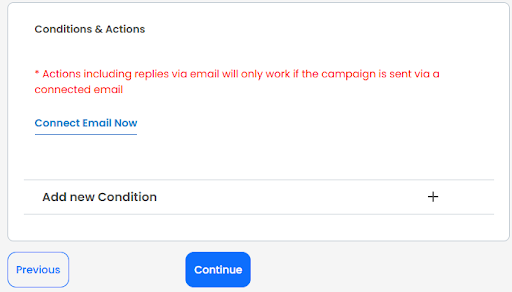
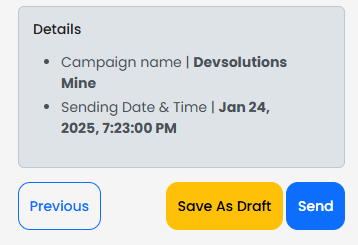
Confirm: Review all the details and confirm your campaign.
Templates
Campaigns
Suppressions
Email logs
Domains
Reputation
Unsubscribes
Teams management
Create New Campaign
Campaigns Listing and Filter
Create New Verified Senders

To create, search, and manage templates in the Templates module, follow this step-by-step process:

1. Create a New Template

Click the blue + (Plus) button located in the top-right corner.

Choose whether to build a new template design from scratch or edit a base structure to save to your account.
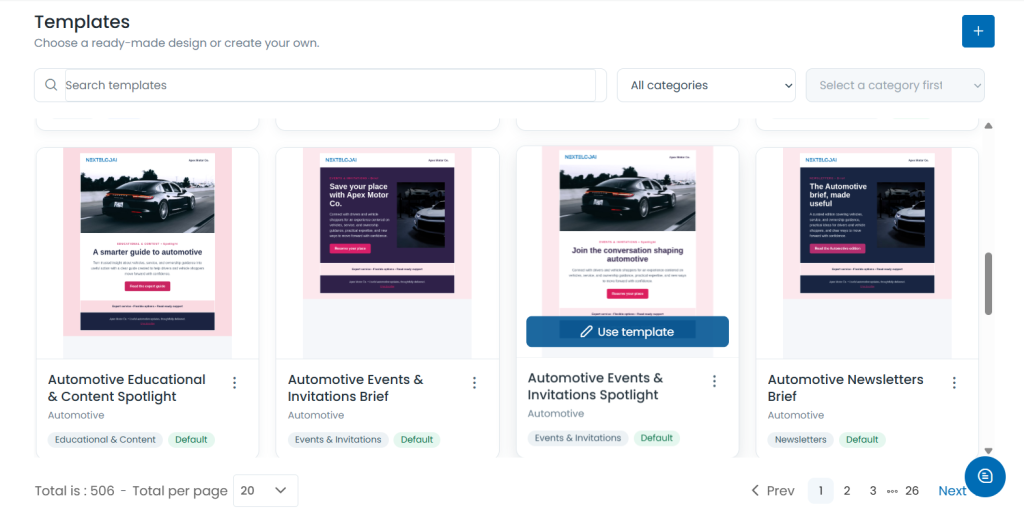
2. Search and Filter Templates
  • Search Field: Type a name or keyword into the Search templates input bar on the left to quickly locate specific designs.
  • Category Filter: Click the All categories dropdown menu to filter templates by specific design or business types.
  • Sub-Category Filter: Use the Select a category first dropdown menu to narrow down options after selecting a primary category.

3. Review and Manage Existing Templates
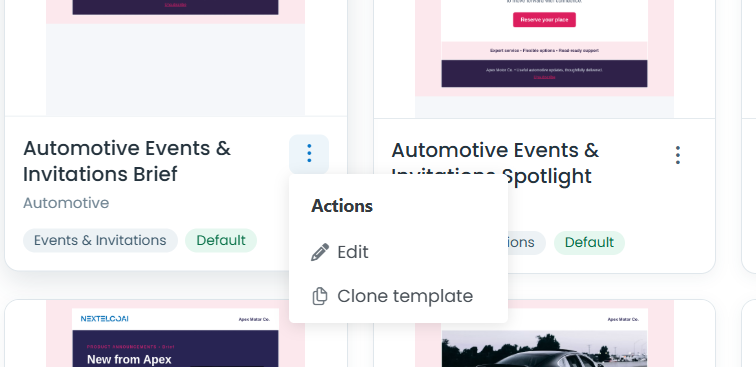
  • Browse available cards such as First Template, First Template_copy, Fred new template, or New Demo Template.
  • Identify template types and statuses via the bottom labels (e.g., Custom, Saved).
  • Click the Three Dots (⋮) menu icon on any template card to perform actions like editing, duplicating, or deleting.

Payment Methods Management
Account Usage
Billing History

How to Manage Payment Methods

Navigate to Payment Methods

Go to your account settings and select the Payment Methods tab.

Add a New Payment Method

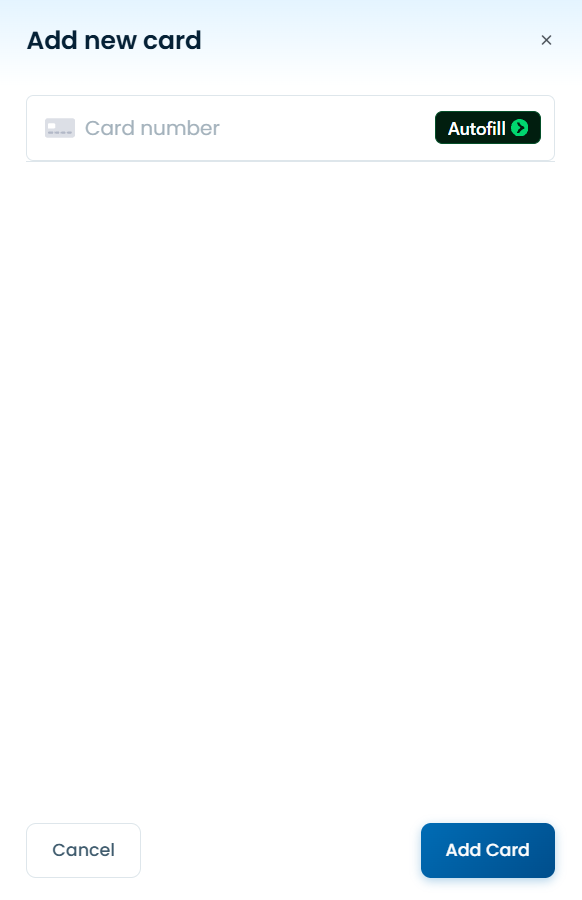
Click the blue “+” (Plus) button located in the top-right corner of the screen.

Enter your card details (card number, expiration date, and CVV/CVC) in the prompt to link a new payment card.
View Existing Payment Methods

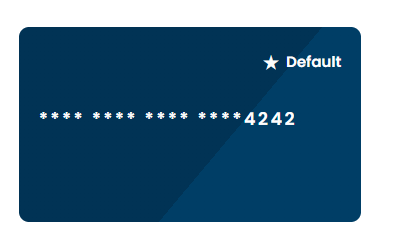
Saved cards are displayed as individual card tiles showing the last four digits (e.g., **** 4242).

Identify or Change the Default Card

The card currently set for primary billing will display a ★ Default tag in the top-right corner of its tile.
Auto Refill Settings
Logs
Carrier registration
Usage
Overview
Chat

How to Use Auto Refill Settings

The Auto Refill Service ensures that your account balance is automatically replenished when it falls below a specified threshold. This feature helps you avoid interruptions in services by maintaining a sufficient balance.
Steps to Enable and Configure Auto Refill
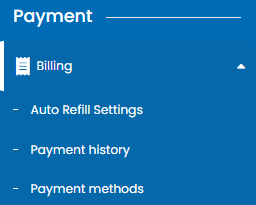
  1. Navigate to Billing in the left-hand menu.
  2. Select Auto Refill Settings from the submenu.

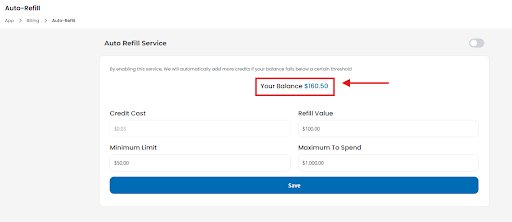
  • Your Balance: Displays your current account balance.

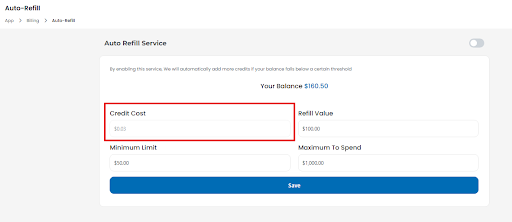
Credit Cost: Shows the cost per credit (e.g., $0.03 per credit).
  • Follow these steps to configure auto-refill:
    • Enable the Service: Toggle the switch at the top right of the page to activate auto-refill.

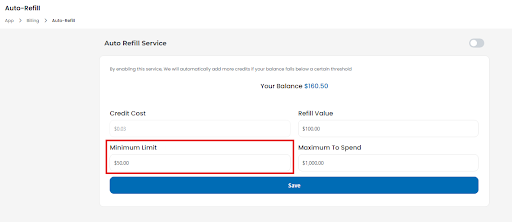
Set Minimum Limit: Enter the balance threshold (e.g., $50.00).
Minimum Limit: The balance threshold that triggers an auto-refill
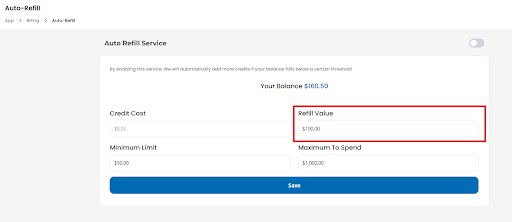
Define Refill Value: Specify the amount to be added (e.g., $100.00).
Refill Value: The amount to be added to your balance each time an auto-refill is triggered.
Set Maximum to Spend: Define the total amount you’re willing to spend (e.g., $1,000.00).
Maximum to Spend: The total limit you are willing to spend for auto-refills during the billing period.
Click Save to apply the changes.
What is NexTelcoAI
What does NexTelcoAI do
What is NexTelcoAI CE
What is NexTelcoAI WE
What is NexTelcoAI WFA
What is NexTelcoAI Cloud

What is NexTelcoAI

NexTelcoAI appears to be an AI-powered telecom/business communications platform available as a mobile app (Android and iOS), developed by DevSolutions Group. Based on its public app listings, it is designed to help businesses manage calls, messages, voicemails, sales activity, and customer interactions from one system.

What it does
Key features described publicly include:
  • AI-powered insights for call performance and user activity
  • Smart call handling such as routing, voicemail transcription, and automated responses
  • Unified communications for calls, messages, and voicemails
  • Sales/customer management with team performance and commissions tracking
  • Team collaboration by assigning calls/messages internally
  • Secure & scalable tools for business use
Accounts Settings
Dashboards Management
Translations
CRM
Notifications
Integrations
How to Manage DIDs in NextelcoAI
How to Manage Chatbot in NextelcoAI
How to Manage Account Settings  in NextelcoAI

How to Update Account and Address Details

Upload Profile Picture / Avatar
  • Click on the circular profile icon under Account info to upload an account logo or image. Supported formats include JPG, PNG, and GIF.

Fill Out Account Information
  • Company Name: Enter your business name in the Company name * field (e.g., NexTelcoAI).
  • Legal First & Last Name: Provide your primary contact name in the Legal first name * and Legal last name * fields (e.g., John Doe).
  • Time Zone: Select your local time zone from the Time Zone dropdown menu (e.g., America/New_York).

Enter Address Information
  • Street Address: Input your physical address in the Address * field (e.g., 130 California St).
  • City & State: Fill in the City * (e.g., NY) and State * (e.g., FI) fields.
  • Zip Code: Enter your postal code in the Zip code * field (e.g., 445454).
  • Country: Select your country from the Country * dropdown menu (e.g., United States).

Save Account Details
  • Review all required fields marked with an asterisk (*) for accuracy and save your updates.